Showcase
Welcome to the showcase page of easyterm. Here, you’ll find concise examples to show the features offered by this module.
Showcase set-up
For the examples below to work correctly, after installing easyterm, open python and run this before anything else:
>>> from easyterm import *
Printing with colors and other markup
The module Module colorprint offers functions to print elegant messages to screen using ANSI terminal colors.
Function write() works like the python built-in print, but
additionally offers the argument how, which accepts a markup code to define the color
used to printing to screen the message.
>>> write('This is a message with no markup')
... write('This message is colored!', how='red')

There are many markups available, as shown here:
>>> for i in 'black blue bright cyan dim green magenta red reverse underscore white yellow reverse,blue,bright red,underscore'.split():
...  write('This message is marked with '+i, how=i)
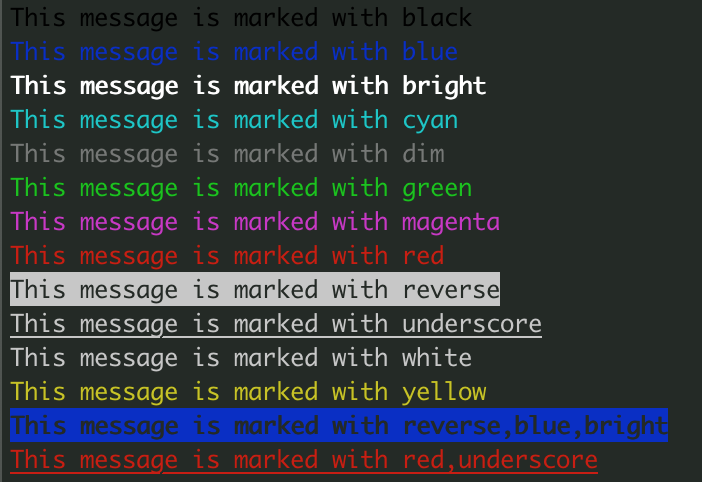
Note that some markups can be combined with others using commas, as shown in the last two examples above.
Like built-in print, write() accepts a end argument, defining what
is appended at the end of each printed message.
By default it is '\n', meaning that a newline is appended.
Use end='' to avoid it, so that the new message will stay on the same line.
We can use this to print messages alternating different markups:
>>> write('Print with ', end='')
... write('AMAZING ', how='yellow', end='')
... write('style', how='magenta')

You may want to consistently highlight certain words to facilitate their visualization identification.
The keywords argument serves this purpose:
>>> write("Let's highlight OK and ERROR words:\n #1 is OK \n #2 had ERROR \n #3 is OK",
...   keywords={'OK':'green', 'ERROR':'red'})

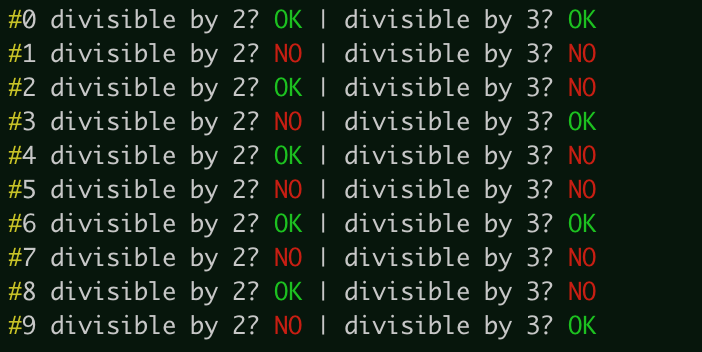
You may instead use set_markup_keywords() to set keywords globally, so that they’re matched in every subsequent call
of write() (and also printerr()):
>>> set_markup_keywords({'OK':'green', 'NO':'red', '#':'yellow'})
... for i in range(6):
...     write( f'#{i} divisible by 2? { "OK" if not i%2 else "NO"    }' \
...               f'| divisible by 3? {"OK" if not i%3 else "NO"}' )
Warning
Setting lots of markup keywords will slow down printing.
Print errors, warnings and progress bars
For printing to standard error rather than standard output, use function
printerr(). It takes the same exact arguments as
write(), and equally supports markup:
>>> printerr('WARNING something went bad and it needs your attention!', how='bright,yellow')

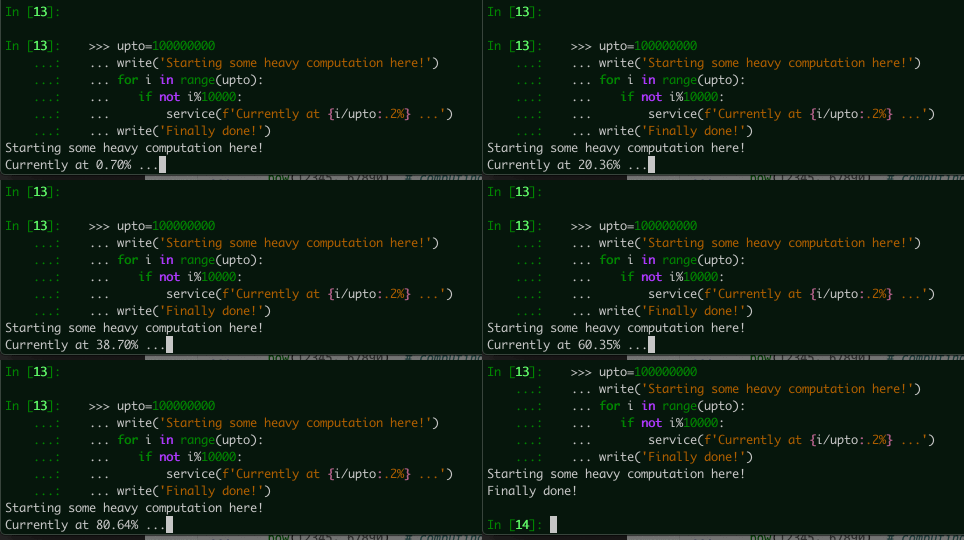
Easyterm provides another convenient function, service(),
meant to print messages whose content changes over time, by means of overwriting
without changing line, for example to monitor progress status:
>>> upto=100000000
... write('Starting some heavy computation here!')
... for i in range(upto):
...    if not i%10000:
...        service(f'Currently at {i/upto:.2%} ...')
... write('Finally done!')
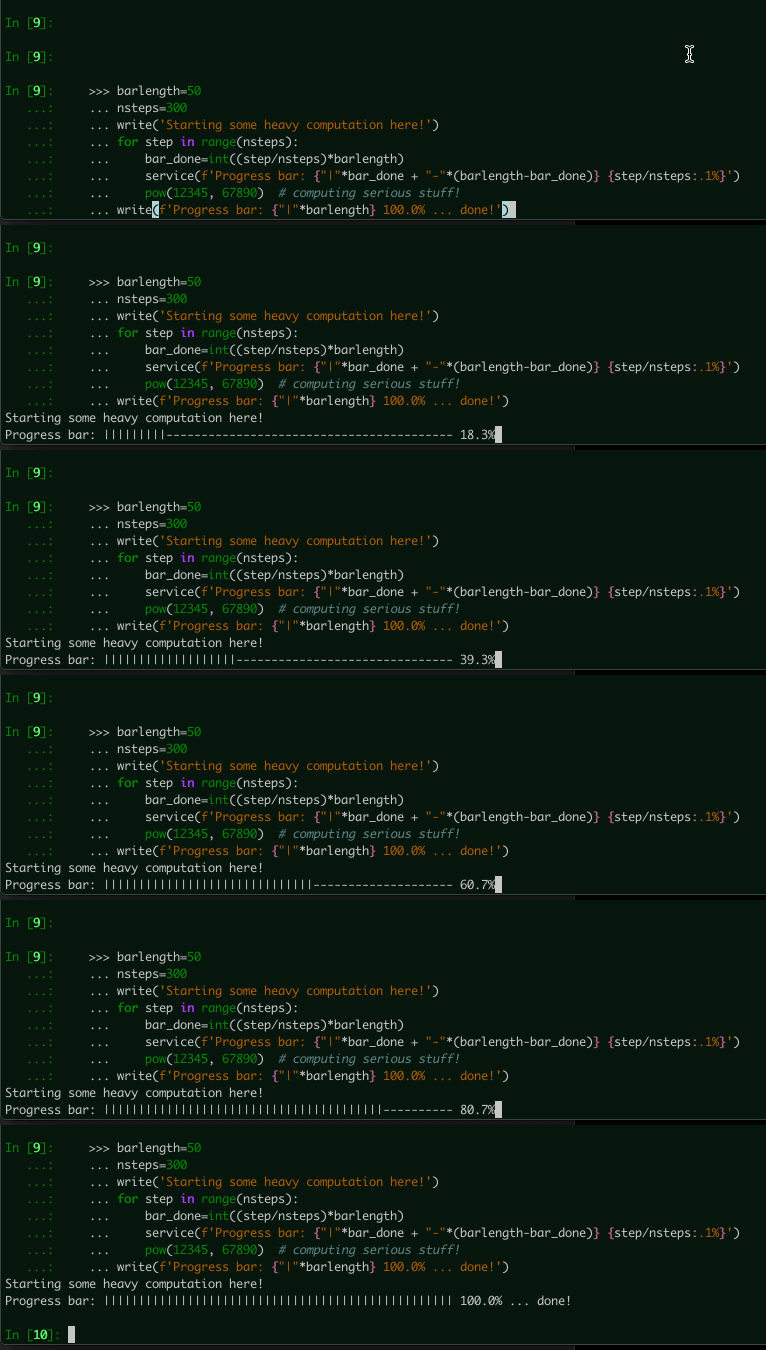
With service(), it is straightforward to visualize a progress bar:
>>> barlength=50
... nsteps=300
... write('Starting some heavy computation here!')
... for step in range(nsteps):
...     bar_done=int((step/nsteps)*barlength)
...     service(f'Progress bar: {"|"*bar_done + "-"*(barlength-bar_done)} {step/nsteps:.1%}')
...     pow(12345, 67890)  # computing serious stuff!
... write(f'Progress bar: {"|"*barlength} 100.0% ... done!')
Warning
If you use service() in your script, you should avoid using built-in print,
and stick to Module colorprint functions write()
and printerr() for printing messages to screen.
If you really need to use print, then make sure
to run flush_service() after running service()
to make sure subsequent messages are visualized correctly
Reading options from the command line
Python offers various tools to read options provided as you run your script through the command line (e.g. argparse, getopt). Although powerful, these methods often require lots of code for rather basic functionalities.
The easyterm Module commandlineopt provides a function to make managing command line options as straightforward as it gets:
command_line_options().
To adopt it in your script, you need to prepare just two objects:
default_opt: a dictionary defining which options your program accepts, and what are their default arguments.
help_msg: the text displayed when your program is run with any of
-hor-helpor--help.
command_line_options() returns a dictionary-like object which has
option names as keys and, as their associated values, the arguments to use in the current program execution
(i.e., those provided by the user, or in their absence, default values).
Let’s see an example of a python script adopting this model, repeat_file.py:
from easyterm import command_line_options, printerr, write
def_opt={'i':'inputfile',
         'o':'',
         'n':3}
help_msg="""This program prints the content of an inputfile, repeated N times.
            Options:
                -i  inputfile
                -o  outputfile [optional]
                -n  number of repetitions"""

opt=command_line_options(def_opt, help_msg)
# that's it! the dict-like object opt contains current options

# printing it:
printerr(opt, how='green')          ## showing what is returned by command_line_options

# program code: open an inputfile, printing its content N times
if opt['o']:    fh=open(opt['o'], 'w')
for repetition in range(opt['n']):
    for line in open(opt['i']):
        if opt['o']:    fh.write(line)
        else:           write(line, end='')
Let’s consider a text file called oneline.txt, whose only content is:
well, there is a single line of text here
Now, let’s run our repeat_file.py script with this as input:
python repeat_file.py -i oneline.txt
This is the result:
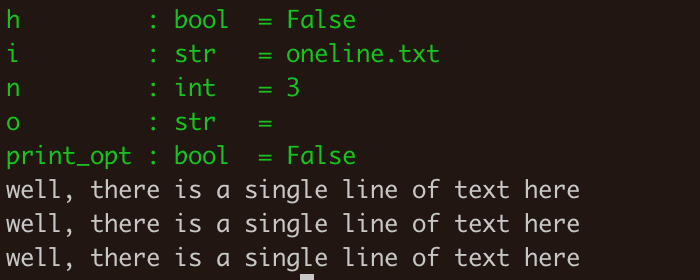
In green, the script has printed the content of opt.
We see the value of the -i option we provided on the command line,
while default values where used for -o (empty string) and -n (3).
Two special options are always added by command_line_options():
-h, which shows the help message when activated, and -print_opt,
which prints active options when activated (pretty much like our script did).
These options are always available (and reserved) in scripts that adopt command_line_options().
If we run our script providing an output file:
python repeat_file.py -i oneline.txt -o output.txt
We see that the -o option recorded in opt was updated accordingly:

If we ran repeat_file.py with option -help, we would see the help page,
and the script would quit with no action afterwards:
python repeat_file.py -h

The command_line_options() function automatically convert arguments to the
appropriate type, and checks that it is correct for that option. The def_opt defines the type
of value accepted for each option.
So, for example, if you try to provide a string for the integer option -n
(since defined in def_opt as 3) , the program will crash:
python repeat_file.py -i oneline.txt -n five

There are five accepted argument types:
integer (
int)floating point number (
float)string (
str)boolean (
bool): these options can be given on the command line without argument, which results in aTruevalue. Otherwise, accepted arguments are1,T,True(all resulting in aTruevalue), or0,F,False(resulting in aFalsevalue).list of strings (
list): these options may accept multiple arguments, which are stored as a python list. For example, a list-type-filesoption may be used in command line like this:-files a.txt b.txt c.txt.
The function command_line_options() has many more features
explained in its documentation, including:
positional arguments: without an explicit option name
option synonyms: e.g. you may have the user specify
-inputor-iwith the same resultadvanced help pages: option
-hmay accept an argument to show specific instructions otherwise not displayed
Easyterm provides a number of template scripts of increasing complexity, complete with comments, to showcase useful features it provides. Check them in the github page or in your installation folder.
Reading options from a configuration file
Easyterm provides a complementary approach to reading options from command line: reading them
from a configuration file. The function read_config_file() takes a
file path or buffer as argument, and returns a dictionary-like object analogous to that returned by
command_line_options().
While developers are free to use this function as they see fit, it was developed with this structure in mind:
the configuration file defines options and their default values
command line options override (some of the) options with runtime-specific arguments
In other words, the configuration file is used to build an object analogous to def_opt.
A configuration file read by read_config_file() has the following format:
option_name = its_argument
# it can contain any number of comments
# ... and any number of empty lines

another_option =   a single string including spaces

# options with value types other than a string must include a type specification:
an_integer_option :int = 14
a_float_option  :float =  5.0
a_boolean_option :bool = True

# arguments of list-type options are split using space as separator:
a_list_option :list =  arg1 arg2 arg3  arg4

# for list elements composed of multiple words, use quotes:
list_option2 :list =  arg1 arg2 'this is arg3' arg4
Let’s now combine read_config_file() and command_line_options()
to produce the hierarchy outline above:
>>> conf_opt = read_config_file('example_config.txt')
... opt=command_line_opt(conf_opt, help_msg='Command line usage: ...')
Raise an exception without traceback
Python Exceptions are an elegant way to control for errors, and trace their occurrence in
your code. When an error occurs in python, an exception is raised. Also, exceptions can be
explicitly raised by the programmer, for a variety of uses.
When an exception is raised, typically the program will crash showing a traceback message (printed on standard error).
For example, if you were to run this program:
for i in range(5):
  print(i)
  raise Exception('This is a normal exception')
Then you would get something like:
0
Traceback (most recent call last):
  File "t.py", line 3, in <module>
      raise Exception('This is a normal exception')
      Exception: This is a normal exception
The traceback is one of the coolest features of python. But in some cases, it is a bit too noisy: sometimes you just want to tell the user that some input was not ok, for example.
Easyterm provides an Exception subclass called NoTracebackError.
When raised, the usual traceback shown by the python interpreted is omitted, and just the exception message
is printed to standard error. For example, if you run this program:
from easyterm import NoTracebackError
for i in range(5):
  print(i)
  raise NoTracebackError('This is a message without traceback')
The output you see on the command line will be just:
0
This is a message without traceback
As for the python built-in Exception, NoTracebackError is instanced
with the error message as its argument.
Template scripts
Easyterm provides a few pre-made template scripts, which show how functionalities are used in practice. Template scripts are numbered in order of increasing complexity. Their help message briefly explain the functionalities included.
Check them out at the templates page.